

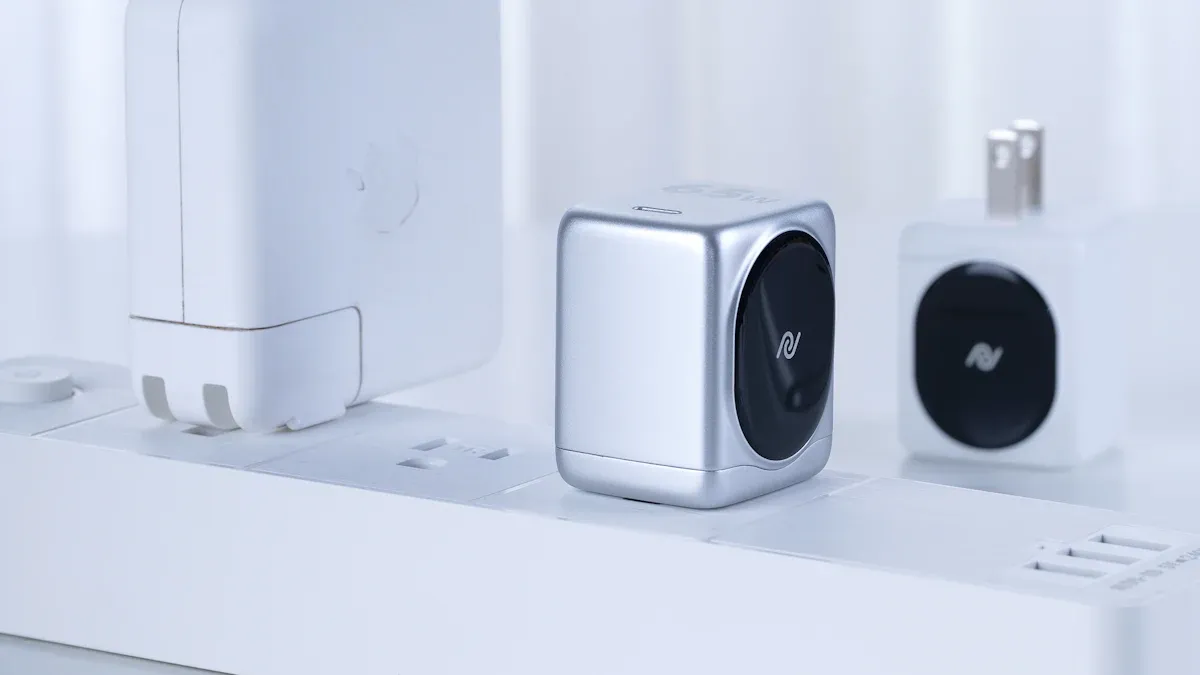
It is frustrating when your smart plug does not respond, especially to a “Power On Now” command. You expect your smart home devices to work seamlessly. Sometimes, internal components like relays wear out, or a connected device might draw too much power, activating overload protection. This can cause your smart plug not responding issue. Do not worry; this is a common problem with many straightforward solutions. This guide provides 12 quick troubleshooting steps. You can get your smart plug working again. A solution is likely within reach.
Initial Troubleshooting for Smart Plug Not Responding
When your smart plug does not respond, start with these basic checks. These steps often quickly resolve common issues.
Check Power Supply
First, ensure your smart plug receives adequate power. A smart plug needs consistent power to function correctly. You should check if the wall outlet works. Plug another device into the same outlet. If that device works, the outlet provides power. Smart plugs typically use 1 to 5 watts for standby power. This power keeps the Wi-Fi connection active. When you turn on a device, the smart plug uses slightly more power, usually less than 1 watt. This extra power activates the internal relay. Make sure the smart plug is firmly seated in the outlet.
Power Cycle the Smart Plug
If your smart plug is still not responding, try power cycling it. This means you unplug the smart plug completely from the wall outlet. Wait about 10 to 15 seconds. Then, plug it back in. This simple action can resolve many temporary bugs. It realigns connections. Power cycling fully resets the system. It clears temporary problems. This process addresses issues within the central processing unit and firmware. It ensures a complete reset of the device’s settings. This often restores normal functionality.
Restart the Smart Plug App
Sometimes, the problem is not with the smart plug itself. Your smart plug app might have a temporary glitch. Fully close the app on your phone or tablet. Do not just minimize it. Then, reopen the app. This often resolves communication issues between your device and the smart plug.
Essential Troubleshooting Steps for Connectivity
If your smart plug still does not respond, you should check its network connection. Many issues come from Wi-Fi problems.
Confirm Wi-Fi Network (2.4GHz)
Most smart plugs need a 2.4GHz Wi-Fi network. They do not require high bandwidth. They only send small signals like “on” or “off.” A 2.4GHz signal travels farther. This helps in larger homes. Smart home devices often have small antennas. These antennas work better with 2.4GHz signals. They struggle with 5GHz signals. A 2.4GHz Wi-Fi signal can reach up to 200 feet. It also goes through walls well. For example, a 2.4GHz signal loses only 70% strength through drywall. A 5GHz signal loses 90%.
Reboot Your Wi-Fi Router
Sometimes, your router needs a fresh start. Unplug both your modem and your Wi-Fi router. Wait at least one minute. Then, plug them back in. This action clears temporary files. It restarts internal processes. It also helps your router find a less busy Wi-Fi channel. Rebooting clears clogged memory. This improves your network’s speed and performance. It can fix minor glitches.
Optimize Router Proximity
Your smart plug needs a strong Wi-Fi signal. Move your router closer to the smart plug. Or, move the smart plug closer to the router. Many things can block Wi-Fi signals.
Metal: Metal doors or filing cabinets reflect signals.
Concrete Walls: These walls greatly reduce signal strength.
Water: Fish tanks or large water features absorb signals.
Appliances: Fridges and ovens are often metal. They can also create electrical noise.
Other Devices: Microwaves, cordless phones, and baby monitors use the 2.4 GHz frequency. They can cause connection issues.
Disable 5GHz Wi-Fi (Temporarily)
Many modern routers broadcast both 2.4GHz and 5GHz networks. They use the same name. Your smart plug might try to connect to the faster 5GHz signal. It cannot use this signal. Temporarily turn off the 5GHz band on your router. This forces your smart plug to connect to the 2.4GHz network. This often solves the problem.
I seem to have solved the annoying “Device Unreachable” or out of range problem by disabling 5G on my wifi router. When I did this all my disconnected smart plugs suddenly reconnected on their own. I didn’t have to reset them manually at all.
Advanced Troubleshooting for Unresponsive Devices
If basic steps do not fix your smart plug, you need to try more advanced solutions. These steps address deeper software or connection issues. This section focuses on further troubleshooting unresponsive devices.
Update Device Firmware
Your smart plug runs on firmware. This is its internal software. Manufacturers release updates to fix bugs and improve performance. Outdated firmware can cause connection problems or unresponsiveness. You should check for available updates. Open your smart plug’s app. Look for device settings or firmware update options. Follow the app’s instructions to install any new firmware. This process can take a few minutes. Ensure your smart plug stays connected to power during the update.
Re-Pair the Smart Plug
Sometimes, the connection between your smart plug and your app gets corrupted. Re-pairing the device can fix this. First, remove the smart plug from your app. Go to the device list in your app. Select your smart plug. Find the option to “Remove Device” or “Delete Device.” Confirm this action. Then, follow the original setup instructions. Add the smart plug back to your app as if it were a new device. This creates a fresh connection.
Factory Reset the Smart Plug
A factory reset returns your smart plug to its original settings. This is a powerful step. It clears all stored data and settings. Most smart plugs have a physical button. Press and hold this button for 5-10 seconds. The indicator light will usually blink rapidly. This shows the reset is complete. If a standard reset does not work, try another method. Hold down the button while you plug the smart plug into the wall outlet. Keep holding the button for a few more seconds. This forces a hard reset. After the reset, you must re-pair the smart plug with your app.
Last Resort Solutions
If your smart plug still does not respond after trying all previous steps, consider these final solutions.
Minimize Interference
Wireless interference can severely affect your smart plug’s performance. Many devices use the same frequency as your smart plug. This causes problems. For example, microwave ovens operate on similar frequencies (2.45 GHz). They can cause temporary disruption. Older 2.4 GHz cordless phones also significantly interfere with Wi-Fi. Baby monitors often use the 2.4 GHz band, leading to congestion. Large metal objects like refrigerators, ovens, metal furniture, and water heaters block and reflect Wi-Fi signals. This creates dead zones. Mirrors also scatter and reflect wireless signals. Bluetooth devices, such as video cameras, game controllers, headphones, and speakers, operate in the 2.4 GHz band. They cause wireless congestion. Even other smart home devices like smart light bulbs, voice assistant hubs, and security cameras can overcrowd your network. They compete for bandwidth and radio channels.
Electromagnetic interference (EMI) can disrupt your smart home operations. This turns convenient devices into frustrations. You might experience a loss of connectivity. Devices like smart thermostats, cameras, and speakers lag or fall out of sync. This makes real-time usage unreliable. EMI can also lead to energy inefficiency. It interferes with power distribution. Devices work harder to maintain connections or recover functionality. This increased effort results in higher energy consumption and heightened wear. It can also shorten the lifespan of your gadgets. Try to move your smart plug away from these interfering devices.
Contact Manufacturer Support
If nothing else works, contact the manufacturer’s support team. They can offer specific troubleshooting steps for your model. They might also tell you if your device has a known issue. When you contact them, you will typically need to provide some information. This includes your first name, last name, your email, and a detailed message about the problem. Be ready to explain all the steps you have already tried. Many smart plugs come with a warranty. For example, SmartPlug products offer a seven-year warranty from the date of purchase. This covers defects. If your smart plug is still under warranty, you might get a replacement.
A “smart plug not responding” issue is common. You can often resolve it with systematic troubleshooting. Work through each fix patiently. This methodical approach helps you find the solution. If all else fails, contact customer support. You might also consider replacing a faulty device. We hope you have successfully restored your smart home devices’ functionality.
FAQ
Why does my smart plug keep disconnecting?
Your smart plug often disconnects due to weak Wi-Fi signals. Interference from other devices can also cause this. Ensure your router is close enough. Check for obstacles like metal objects. Rebooting your router can help.
Can I use a smart plug with 5GHz Wi-Fi?
Most smart plugs need a 2.4GHz Wi-Fi network. They do not work with 5GHz Wi-Fi. You should ensure your router broadcasts a 2.4GHz signal. Temporarily disabling 5GHz can help your plug connect.
How do I know if my smart plug is broken?
If your smart plug does not respond after all troubleshooting, it might be broken. Try a factory reset. If it still fails to power on or connect, the internal components may be faulty. Contact the manufacturer for support.
Do smart plugs use a lot of electricity?
Smart plugs use very little electricity. They typically consume 1 to 5 watts in standby mode. This keeps their Wi-Fi connection active. They use slightly more power when actively switching a device. This consumption is minimal.
