

You want a monitor that matches how you work and play, without wasting desk space or cash. These six 2026 picks cover curved USB‑C setups for immersive single‑cable desks, color‑accurate QHD panels, compact lifestyle displays, budget plug‑and‑play models, and sharp gaming screens with low latency. I’ll point out which suits your priorities and what to watch for next — so you can pick the right screen with confidence.
| SANSUI 27″ Curved 120Hz FHD USB-C Monitor |
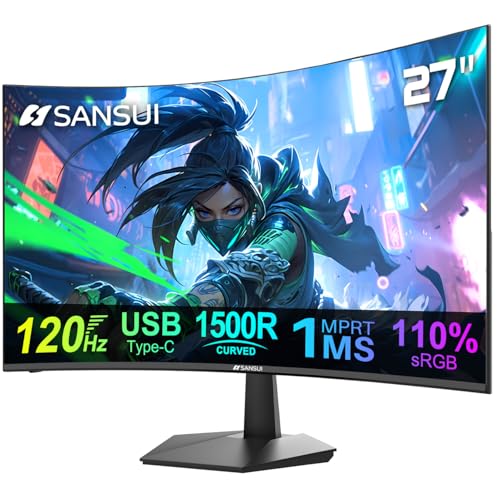
| Immersive Gaming Pick | Screen Size: 27″ | Resolution: FHD (1920×1080) | Refresh Rate: 120 Hz | VIEW LATEST PRICE | Read Our Analysis |
| Dell S2425HS 23.8″ FHD 100Hz Monitor (Ash White) |

| Premium Productivity | Screen Size: 23.8″ | Resolution: FHD (1920×1080) | Refresh Rate: 100 Hz | VIEW LATEST PRICE | Read Our Analysis |
| Amazon Basics 24″ FHD 1080p Monitor (VESA) |

| Best Budget Buy | Screen Size: 24″ (23.8″ viewable) | Resolution: FHD (1920×1080) | Refresh Rate: Up to 100 Hz | VIEW LATEST PRICE | Read Our Analysis |
| Sceptre 27″ Gaming Monitor 100Hz 1ms (E275W-FW100T) |

| Value Gamer | Screen Size: 27″ | Resolution: FHD (1920×1080) | Refresh Rate: 100 Hz | VIEW LATEST PRICE | Read Our Analysis |
| Dell S2725DS 27″ QHD 100Hz Monitor (Ash White) |

| Professional Detail | Screen Size: 27″ | Resolution: QHD (2560×1440) | Refresh Rate: 100 Hz | VIEW LATEST PRICE | Read Our Analysis |
| Sansui 24″ FHD 100Hz Monitor with FreeSync and HDMI |

| Compact Gamer | Screen Size: 24″ | Resolution: FHD (1920×1080) | Refresh Rate: 100 Hz | VIEW LATEST PRICE | Read Our Analysis |
More Details on Our Top Picks
SANSUI 27″ Curved 120Hz FHD USB-C Monitor
Should you want a curved 27-inch monitor that balances smooth gaming and everyday productivity, the SANSUI 27″ Curved 120Hz FHD USB-C is a strong pick—offering a 120 Hz refresh rate with 1 ms MPRT and Adaptive Sync for responsive gameplay, plus USB-C connectivity and a 1500R curve that helps immersion without taking up extra desk space. You’ll get FHD clarity, 110% sRGB, 16.7M colors, HDR, 4000:1 contrast and 300 nits for punchy visuals. Anti-glare, 3H hard coating, low blue light and anti-flicker protect your eyes. Built-in speakers, HDMI, tilt and VESA mount add practical convenience.
- Screen Size:27″
- Resolution:FHD (1920×1080)
- Refresh Rate:120 Hz
- Panel Type / Viewing:VA-type curved (wide 178° viewing)
- Built-in Audio:Yes — 2 × 2W speakers
- VESA Mountable:Yes — 100 × 100 mm
- Additional Feature:USB-C connectivity
- Additional Feature:1500R curved panel
- Additional Feature:HDR support
Dell S2425HS 23.8″ FHD 100Hz Monitor (Ash White)
Should you want a compact, lifestyle-friendly monitor that balances smooth motion with accurate color, the Dell S2425HS delivers a 23.8″ IPS panel at 100 Hz and 99% sRGB coverage—ideal for everyday creators and multitaskers who value fluid visuals and faithful hues in a clutter-free setup. You’ll get ultrathin bezels, adjustable height/tilt/swivel/pivot and improved cable management to keep your desk tidy. Interface control uses a convenient joystick and shortcut buttons. ComfortView Plus and TÜV Rheinland Eye Comfort reduce blue light. Dual HDMI, side-access ports, integrated dual 5W speakers with presets, and a 1500:1 contrast ratio round out a versatile, stylish monitor.
- Screen Size:23.8″
- Resolution:FHD (1920×1080)
- Refresh Rate:100 Hz
- Panel Type / Viewing:IPS (wide viewing angles)
- Built-in Audio:Yes — dual 5W speakers
- VESA Mountable:Yes — (adjustable stand; VESA implied)
- Additional Feature:Height/ swivel/ pivot
- Additional Feature:ComfortView Plus
- Additional Feature:Joystick OSD navigation
Amazon Basics 24″ FHD 1080p Monitor (VESA)
Should you want a reliable, budget-friendly 24″ IPS display with VESA mounting for a tidy multi-monitor or wall setup, the Amazon Basics 23.8″ FHD monitor is a solid pick. You get a crisp 1920×1080 panel with vibrant colors and up to 100Hz refresh for smoother motion than standard 60Hz screens. Built-in speakers deliver clear audio for casual use, and plug-and-play connectivity gets you up and running fast. It’s VESA compatible for flexible placement. Before initial use, remove the protective film (check the date code) to avoid image distortion and guarantee the panel stays scratch-free.
- Screen Size:24″ (23.8″ viewable)
- Resolution:FHD (1920×1080)
- Refresh Rate:Up to 100 Hz
- Panel Type / Viewing:IPS
- Built-in Audio:Yes — built-in speakers
- VESA Mountable:Yes — VESA compatible
- Additional Feature:Plug-and-play setup
- Additional Feature:Protective film shipped
- Additional Feature:IPS panel
Sceptre 27″ Gaming Monitor 100Hz 1ms (E275W-FW100T)
Should you want a budget-friendly 27-inch monitor that leans into smooth, responsive gameplay, the Sceptre E275W-FW100T delivers with a 100Hz refresh rate and 1ms response time via DisplayPort or HDMI. You’ll get 100% sRGB for natural colors and a frameless design that keeps your setup sleek. Connectivity includes one DisplayPort, two HDMI ports, audio in and a headphone jack. AMD FreeSync plus FPS and RTS presets optimize visuals for different genres. Blue Light Shift reduces eye strain, built-in speakers save desk space, and the machine-black chassis supports VESA mounting for flexible placement.
- Screen Size:27″
- Resolution:FHD (1920×1080)
- Refresh Rate:100 Hz
- Panel Type / Viewing:(unspecified type) wide viewing / frameless
- Built-in Audio:Yes — built-in speakers
- VESA Mountable:Yes — VESA wall-mountable
- Additional Feature:FPS/RTS presets
- Additional Feature:AMD FreeSync support
- Additional Feature:DisplayPort + 2× HDMI
Dell S2725DS 27″ QHD 100Hz Monitor (Ash White)
Should you want a sharp, comfortable daily driver for work and light gaming, the Dell S2725DS delivers with a 27″ QHD (2560×1440) panel and a 100 Hz refresh rate that gives you noticeably smoother motion than standard 60 Hz screens. You’ll get 1.77× more detail than Full HD and a 1500:1 contrast ratio for balanced shadows and highlights. TÜV Rheinland Eye Comfort four-star certification helps reduce eye fatigue during long sessions. Integrated dual 5W speakers offer a surprisingly wide tonal range for casual audio. The ash white chassis includes height, tilt, swivel and pivot adjustments for ergonomic flexibility.
- Screen Size:27″
- Resolution:QHD (2560×1440)
- Refresh Rate:100 Hz
- Panel Type / Viewing:(unspecified type) QHD panel with wide viewing
- Built-in Audio:Yes — dual 5W speakers
- VESA Mountable:Yes — ergonomic adjustments (VESA compatible)
- Additional Feature:QHD 2560×1440 resolution
- Additional Feature:Height/ tilt/ swivel/ pivot
- Additional Feature:TÜV Eye Comfort certified
Sansui 24″ FHD 100Hz Monitor with FreeSync and HDMI
Assuming you want a compact, budget-friendly monitor that keeps motion smooth for casual gaming and everyday work, the Sansui 24″ FHD 100Hz is a solid pick—its 100Hz refresh rate plus AMD FreeSync cuts screen tearing while HDR and multiple display modes make it easy to tune visuals for movies, office tasks, or gaming. You get a 24″ 1080p panel with 250 nits brightness, 178° viewing, and RTS/FPS/RACING on-screen aids. Connectivity is simple: HDMI 1.4 (cable included) and a DC power port. It lacks speakers and an audio jack but offers tilt, VESA 75×75, low-blue/flicker-free tech, 30-day returns, and lifetime support.
- Screen Size:24″
- Resolution:FHD (1920×1080)
- Refresh Rate:100 Hz
- Panel Type / Viewing:(unspecified, wide 178° viewing)
- Built-in Audio:No — no built-in speakers
- VESA Mountable:Yes — 75 × 75 mm
- Additional Feature:250 nits brightness
- Additional Feature:RTS/FPS/RACING overlays
- Additional Feature:30-day money-back guarantee
Factors to Consider When Choosing Desktop Computer Monitors
Upon choosing a monitor, you’ll want to balance screen size and resolution with how much desk space and detail you need. Pay attention to refresh rate and response time for smooth motion, plus panel type and color accuracy for true visuals, then check brightness, contrast, and available connectivity to make sure everything plugs in. Together these factors determine whether a monitor fits your workflow, content, and peripherals.
Screen Size & Resolution
Although bigger screens can feel more immersive, you’ll get the best results via matching size and resolution to how you work and how far you sit from the display. For typical desktop distances (20–30 inches), 24–27 inches balances workspace and readability; 32+ inches suits greater distances or multitasking. Pick resolution according to size and pixel density: 1080p works on 24″, but on 27″+ you’ll want 1440p or 4K for sharper text and more usable screen real estate. Match your tasks—creative work and dense spreadsheets benefit from higher resolutions and larger screens; casual browsing can tolerate lower ones. Check OS and app scaling—ensure they render UI elements cleanly. Finally, balance PPI against GPU capability so your system can drive the chosen resolution without performance compromises.
Refresh Rate & Response
Because motion quality hinges on both how often a screen redraws and how fast its pixels change, you should weigh refresh rate and response time together as you choose a monitor. Refresh rate (Hz) tells you how many times per second the image updates; higher rates like 100–240 Hz deliver much smoother motion than 60 Hz. Response time (ms), reported as GTG or MPRT, measures how quickly pixels change; lower values (1–5 ms) cut blur and ghosting. For competitive gaming, target 120 Hz+ and 1–4 ms to reduce input latency and smearing. Use Adaptive Sync (FreeSync/G‑Sync) to match GPU frame output, preventing tearing and stutter whenever frame rates vary. Balance specs with your GPU and content—esports needs differ from cinematic media.
Panel Type & Color
In case you need accurate colors and deep contrast, panel type is the primary spec to weigh: IPS gives wide ~178° viewing angles and consistent color (typically ~99–110% sRGB), VA delivers much higher contrast ratios (often 2000:1–4000:1) for deeper blacks, and TN prioritizes the fastest response times for esports at the cost of color and angles. Choose IPS for color work and collaboration; look for percent sRGB/Adobe RGB coverage, 10-bit support or 8-bit+FRC, and factory calibration or colorimeter verification. Pick VA should contrast and deeper blacks matter for movies or dark-room editing, aware of narrower angles. Select TN only should ultra-low response and budget drive your choice. Consider OLED or Mini-LED should you want top contrast, wide gamut, and HDR, noting higher cost and trade-offs.
Brightness & Contrast
Whenever you evaluate brightness and contrast, focus on the numbers that actually affect visibility and tonal detail: nits tell you how well a screen reads in bright rooms and for HDR, while native (static) contrast governs how deep blacks and shadow gradations appear. Aim for ~200–400 nits for general use; look higher for HDR or brightly lit environments. Prioritize native contrast over marketing dynamic ratios—adaptive modes can introduce haloing and inconsistent black levels. In case you do photo or video work, pick panels with higher static contrast or effective local dimming so shadow detail and tonal gradations remain visible. For HDR, judge peak nits together with contrast and dimming: sustained peak brightness plus solid contrast, not peak nits alone, creates a convincing HDR image.
Connectivity Options Available
For a monitor to work well with your setup, make sure it offers the right physical ports and enough bandwidth for the resolutions and refresh rates you plan to use. Match the monitor’s inputs to your PC: HDMI is common for 1080p–4K at 60–120Hz; DisplayPort is preferred for high refresh rates and adaptive sync. Check connector bandwidth—HDMI 1.4 caps lower, while HDMI 2.0/2.1 and DisplayPort 1.4/2.0 enable 144Hz+ and higher-res 4K modes. Should you desire single-cable convenience, pick USB-C or Thunderbolt with DisplayPort Alt Mode to carry video, power, and USB data. Confirm adaptive-sync support (FreeSync/G-Sync) and which port it requires. Also consider built-in speakers, a headphone jack, and USB-A/C ports for peripherals and docking needs.
Ergonomics & Mounting
Once you’ve matched ports and bandwidth to your system, pay equal attention to how the screen sits and moves—ergonomics and mounting affect comfort, posture, and long-term health. Look for adjustable stands offering height, tilt, swivel, and pivot so you can set the screen at eye level and keep a neutral neck posture. Confirm VESA compatibility (typically 75×75 or 100×100 mm) in case you’ll use a wall mount, monitor arm, or multi-monitor rig for flexible placement. Check tilt (e.g., −5° to 15°) and swivel ranges to suit different seating positions and shared viewing. Consider curvature and size versus viewing distance—1500R curves reduce head movement on large panels, while small flat screens work close up. Evaluate cable management and port placement to avoid awkward rotations or strained connectors.
Eye Comfort Features
Often overlooked, eye comfort features make a big difference in daily monitor use, so you should prioritize technologies that reduce strain and maintain clear, stable images. Look for low blue light modes—ideally TÜV Rheinland-certified—that measurably cut blue-light emission during long sessions. Choose flicker-free backlights with DC dimming to avoid PWM-related headaches and visual fatigue. Prefer higher refresh rates (100–120 Hz or more) and faster response times to lessen perceived motion blur whenever content moves quickly. Pick panels with anti-glare coatings and a brightness range around 250–300+ nits so contrast stays comfortable without harsh reflections in typical indoor lighting. Finally, guarantee wide viewing angles (about 178° IPS-type) and adjustable ergonomics—height, tilt, swivel, pivot— so you can set a prime distance and angle.
Gaming & Productivity Modes
While you switch between tasks and titles, pick a monitor that offers distinct gaming and productivity modes so each session looks and responds the way you need. Choose displays with presets like FPS/RTS, Racing, Office, and Movie so color, contrast, refresh rate, and sharpness auto-adjust for each use. In gaming modes, favor higher refresh rates (100–144+ Hz) and low response times (1–5 ms) to cut motion blur and input lag; look for adaptive sync and HDR-capable presets to reduce tearing and increase tonal range. For work, use productivity modes prioritizing color accuracy (sRGB coverage, factory-calibrated profiles) and higher resolution for crisper text and more workspace. Prefer low-blue-light and flicker-free options, and monitors that let you save custom profiles for specific games or tasks.
