

You’ll be surprised how much desk space a modern scanner can free up without cutting speed. You’ll want a model that handles duplex pages, fits a slim footprint, and plugs into your workflow with USB‑C or Wi‑Fi 6. I’ll compare top picks from Fujitsu, Epson, Brother, and Canon and explain the features that really matter — so you can pick the right balance of capacity, portability, and automation.
| Fujitsu ScanSnap iX2500 Wireless Document Scanner |

| Best Overall | Compatibility: Mac and PC | Scan Speed / Performance: 45 ppm (double-sided) | Supported Media Types: Documents, photos, receipts, business cards | VIEW LATEST PRICE | Read Our Analysis |
| ScanSnap iX2500 Wireless High-Speed Document Scanner |

| Best for Workgroups | Compatibility: Mac and PC | Scan Speed / Performance: 45 ppm (double-sided) | Supported Media Types: Documents, receipts, photos, business cards | VIEW LATEST PRICE | Read Our Analysis |
| Epson WorkForce ES-50 Portable Sheet-Fed Document Scanner for PC and Mac |

| Best Portable | Compatibility: Windows and Mac | Scan Speed / Performance: ~1 page in 5.5 sec (single-sheet mobile) | Supported Media Types: Documents, receipts, ID cards, extra-long pages | VIEW LATEST PRICE | Read Our Analysis |
| Brother DS-640 Compact Mobile Document Scanner (DS640) |

| Budget Mobile Pick | Compatibility: Windows, Mac, Linux | Scan Speed / Performance: Up to 16 ppm (300 dpi) | Supported Media Types: Documents, receipts, invoices, business cards, plastic ID cards | VIEW LATEST PRICE | Read Our Analysis |
| Canon imageFORMULA R40 Office Document Scanner (Receipt Edition) |
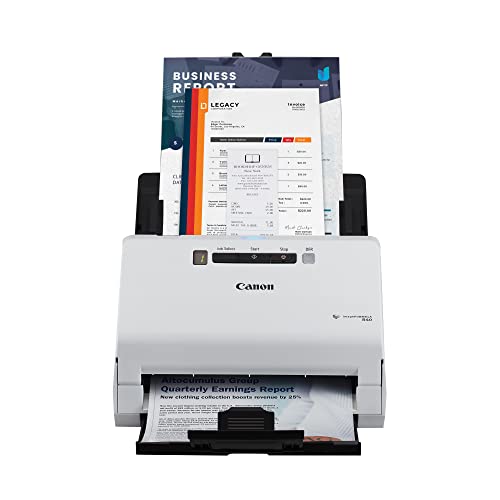
| Best for Receipts | Compatibility: PC and Mac | Scan Speed / Performance: Up to 40 ppm (duplex) | Supported Media Types: Receipts, invoices, general documents | VIEW LATEST PRICE | Read Our Analysis |
More Details on Our Top Picks
Fujitsu ScanSnap iX2500 Wireless Document Scanner
Should you process lots of mixed documents and need fast, reliable scans to your PC, the Fujitsu ScanSnap iX2500 is built for you—its 45 ppm duplex speed, 100‑page feeder, and Wi‑Fi 6 support let you scan long batches wirelessly or via USB‑C with minimal intervention. You’ll get automatic image optimization, file naming, and sorting for documents, photos, receipts, and business cards, plus editing and management tools. The 5″ touchscreen, customizable scan profiles, and Quick Menu streamline workflows. Brake rollers, multi‑feed sensor, and skew detection protect originals and prevent jams. It’s Mac and PC compatible and can upload directly to cloud services.
- Compatibility:Mac and PC
- Scan Speed / Performance:45 ppm (double-sided)
- Supported Media Types:Documents, photos, receipts, business cards
- File/Searchable Output (OCR / Edit):Automatic image optimization; editing/management (implies searchable/organized files)
- Connectivity Options:Wi‑Fi (Wi‑Fi 6) and USB‑C; direct cloud uploads
- Automatic Document Feeding / Handling:100-sheet automatic document feeder; multi‑feed sensor; brake roller
- Additional Feature:5″ large touchscreen
- Additional Feature:Personalized scan profiles
- Additional Feature:Multi‑feed/skew protection
ScanSnap iX2500 Wireless High-Speed Document Scanner
Should you need a fast, reliable scanner for heavy desktop use, the ScanSnap iX2500 is built for speed and simplicity—its 45 ppm double-sided scanning and 100-sheet ADF keep large jobs moving while the 5″ touchscreen and Quick Menu let you set up one-touch workflows to send scans straight to your PC, cloud, or mobile devices. You’ll get Wi‑Fi 6 and high-speed USB-C for flexible connections to Macs, PCs, and smart devices, plus automatic image optimization, file naming, and sorting for documents, receipts, photos, and cards. It includes a four-year protection plan for peace of mind.
- Compatibility:Mac and PC
- Scan Speed / Performance:45 ppm (double-sided)
- Supported Media Types:Documents, receipts, photos, business cards
- File/Searchable Output (OCR / Edit):Automatic optimizations; file naming/sorting; editing tools
- Connectivity Options:Built‑in Wi‑Fi 6 and USB‑C; cloud/smart device/computer
- Automatic Document Feeding / Handling:100-sheet automatic document feeder
- Additional Feature:4‑year protection plan
- Additional Feature:Quick Menu drag‑and‑drop
- Additional Feature:Direct cloud uploads standalone
Epson WorkForce ES-50 Portable Sheet-Fed Document Scanner for PC and Mac
Should you need a truly portable scanner that fits into a laptop bag and runs off a single USB connection, the Epson WorkForce ES-50 is built for on-the-go professionals and students who scan occasionally but expect fast, reliable results. You’ll get the class’s fastest, lightest single-sheet-fed design, USB powered with no batteries. It scans a page in about 5.5 seconds, accepts up to 8.5 x 72 inches, and handles IDs and receipts. Automatic feeding combines multi-page scans into one file. Windows and Mac compatible with TWAIN driver, ScanSmart software, Nuance OCR, and cloud upload options for searchable PDFs and editable files.
- Compatibility:Windows and Mac
- Scan Speed / Performance:~1 page in 5.5 sec (single-sheet mobile)
- Supported Media Types:Documents, receipts, ID cards, extra-long pages
- File/Searchable Output (OCR / Edit):Nuance OCR included — searchable PDFs/Word/Excel
- Connectivity Options:USB powered (USB connection); scan to cloud via software
- Automatic Document Feeding / Handling:Single-sheet automatic feeding mode (combine multi-page scans)
- Additional Feature:USB‑powered (no battery)
- Additional Feature:Scans up to 72″ length
- Additional Feature:Nuance OCR included
Brother DS-640 Compact Mobile Document Scanner (DS640)
Should you need a truly portable scanner that still handles full‑length documents, the Brother DS‑640 delivers: it’s lightweight (about 1.5 lb), under 12 inches long, USB‑powered, and scans color or B/W pages up to 16 ppm and 72 inches long—making it ideal for travelers, remote workers, or anyone who scans receipts, invoices, IDs, and long legal documents on the go. You’ll appreciate reliable greyscale (256 levels), single‑path feeding for mixed media, and support for up to 72 lb bond. Bundled OCR and image‑enhancement tools convert scans to editable files and cloud/email destinations; drivers support Windows, Mac, Linux. One‑year warranty.
- Compatibility:Windows, Mac, Linux
- Scan Speed / Performance:Up to 16 ppm (300 dpi)
- Supported Media Types:Documents, receipts, invoices, business cards, plastic ID cards
- File/Searchable Output (OCR / Edit):Bundled OCR/document conversion to editable Word (with software)
- Connectivity Options:USB 3.0 (micro USB) when connected to PC; drivers for network/cloud via software
- Automatic Document Feeding / Handling:Single-feed path supporting various media up to 72″ (compact feeder)
- Additional Feature:Ultra‑compact lightweight design
- Additional Feature:Linux/SANE driver support
- Additional Feature:1‑year limited warranty
Canon imageFORMULA R40 Office Document Scanner (Receipt Edition)
Should you need a fast, no-fuss scanner that’s built for receipt and invoice processing, the Canon imageFORMULA R40 (Receipt Edition) fits the bill — it digitizes documents into searchable, editable files and pushes extracted payee, amount, and date fields straight to QuickBooks Online or other cloud services. You’ll get single-button batch scans, color duplex capture at up to 40 ppm, and an Automatic Document Feeder to chew through stacks. CaptureOnTouch’s QuickBooks plugin and extraction tools pull key fields and upload them automatically. Compatible with PC and Mac, the R40 simplifies bookkeeping, organizes records for retrieval, and speeds routine invoice workflows.
- Compatibility:PC and Mac
- Scan Speed / Performance:Up to 40 ppm (duplex)
- Supported Media Types:Receipts, invoices, general documents
- File/Searchable Output (OCR / Edit):Digitizes into searchable, editable files; data extraction
- Connectivity Options:USB connection to PC/Mac; integrates with cloud/QuickBooks via software
- Automatic Document Feeding / Handling:Automatic Document Feeder for batch processing
- Additional Feature:QuickBooks Online plugin
- Additional Feature:Single‑button batch scanning
- Additional Feature:Receipt data extraction
Factors to Consider When Choosing a Desktop Scanner for PC
Upon choosing a desktop scanner for your PC, focus on scan speed and image quality to match how fast and how clear you need documents captured. Check connectivity options and paper handling capacity so the scanner fits your workspace and workload. Don’t forget software compatibility to guarantee it works smoothly with your apps and file formats.
Scan Speed
Often overlooked, scan speed is a key factor because it determines how quickly you can process single- and double-sided documents; manufacturers report speeds in pages per minute (ppm) for simplex and images per minute (ipm) for duplex, so compare both to get a realistic sense of throughput. You’ll want higher speeds (40–45 ppm or more) in case you routinely handle large batches, but bear in mind advertised figures are often from low-resolution, simple-document tests. True duplex scanners capture both sides in one pass, doubling effective throughput; avoid models that only simulate duplex via two passes. Also account for how speed drops with higher DPI, color scans, and OCR, and match feeder capacity and expected job sizes so the scanner’s ppm/ipm fits your actual workflow.
Image Quality
How clear do you need your scans to be? Consider optical resolution initially: 300 dpi handles standard text, 600 dpi suits archival documents, and 1,200+ dpi captures photo or graphic detail. Balance resolution with effective scan speed—higher DPI slows throughput (check ppm/ips at your target setting). Mind bit depth and dynamic range: 24-bit is fine for everyday color, but 48-bit and broader dynamic range preserve subtle tones for photos. Look for smart image processing—automatic deskew, color dropout, background removal, and multi-feed/skew detection—to reduce manual fixes and improve output. Finally, confirm OCR accuracy at your chosen settings; OCR performs best with clean, high-contrast scans around 300–600 dpi for reliable text rendering.
Connectivity Options
Which connection will fit your setup and workflow? Match the scanner’s ports to your PC—USB‑C, USB‑A, or Ethernet—to make certain plug‑and‑play compatibility and full‑speed transfers. Should you prefer wireless, pick devices with modern Wi‑Fi (Wi‑Fi 5/6) and support for client and access‑point modes so you can scan directly or share on the network reliably. For mobile or multi‑user environments, confirm cloud and mobile app integration plus SMB/FTP/HTTP support so scans go straight to network folders, cloud storage, or phones. Decide whether standalone operation matters: some scanners upload to cloud or network shares without a host PC. Finally, verify driver and platform support (TWAIN, WIA, ICA, SANE) for your OS to access all scanning features.
Paper Handling Capacity
Upon selecting a desktop scanner, look initially at how many pages it can handle at once and over a day so your workflow won’t be interrupted through frequent refills or premature wear. Check the automatic document feeder (ADF) capacity—options run from single-sheet portable feeders to 50–100‑sheet ADFs—since that dictates batch size. Verify duplex support so two‑sided documents feed once and scan both sides, doubling throughput for multi‑page jobs. Confirm the minimum and maximum sheet sizes and thicknesses, including receipts, business cards, and plastic IDs, to match your media. Look for multi‑feed and skew detection plus sturdy rollers to cut jams and missed pages. Finally, match the scanner’s rated daily duty cycle to your expected pages per day to avoid accelerated wear.
Software Compatibility
Upon choosing a desktop scanner for your PC, make sure its drivers and software actually work with your operating system and the apps you rely on, because compatibility problems can halt workflows and waste time. Confirm support for your OS and driver standards (TWAIN, WIA, ICA, or SANE) so scanning integrates with image and document apps. Check for OCR and file‑format options—searchable PDF/TIFF and editable Word/Excel—if you need text recognition. Verify the vendor supplies timely driver and software updates after OS upgrades. Make certain the scanner connects to your workflows and destinations—cloud services, local folders, email, or third‑party DMS/OCR—via built‑in connectors or APIs. Prefer bundled or third‑party tools offering automation, batch processing, and naming presets to save time.
Portability And Size
Software compatibility matters, but physical fit and portability will determine how well a scanner actually works on your desk. Check the scanner’s footprint—height, width and depth—and weight so it fits comfortably; compact models can be under 12 inches and 1–2 pounds, while full‑size units take more room. Decide whether you want USB‑powered (bus‑powered) units to cut cables and enhance mobility, or external‑power models that might be bulkier. Consider ADF versus single‑sheet/portable designs: ADFs enable batch scanning but need extra space and vertical clearance for covers and trays, whereas single‑sheet units stay minimal. Should you move the scanner often, favor lightweight designs and simple connections like a single USB‑C for quick repositioning.
Security And Privacy
Because scanned documents often contain sensitive information, you should prioritize scanners that protect data both in transit and at rest: look for TLS/SSL or encrypted USB transfers, local AES‑encrypted storage or password‑protected archives, and features that securely erase temporary files and caches. Also confirm user authentication and access controls—PINs, user accounts, or SSO—to limit who can scan, change settings, or retrieve files. Check that the device and companion software get regular security updates and firmware patches to fix vulnerabilities. Evaluate data-handling options like automatic deletion of temp files, secure wipe of internal caches, and configurable retention policies to reduce residual exposure. Choose a model with clear encryption standards and update commitments to keep your documents safe.
Cost Of Ownership
Whenever you’re comparing scanners, don’t stop at the sticker price: add needed cables or stands and estimate consumables, software subscriptions, and expected maintenance so you can see the true initial outlay and ongoing burden. You should tally upfront costs (machine plus accessories) and forecast consumables like feed rollers, cleaning kits, and replacement sensors over the scanner’s expected life. Include ongoing software fees—OCR licenses, workflow app subscriptions, and update costs to keep compatibility with your PC. Factor operating expenses: power draw (idle vs. active) and potential technician or downtime costs for high-volume use. Amortize purchase, consumables, software, and maintenance across useful years to calculate a per-page cost. That per-page figure lets you compare ROI and budget accurately.
