
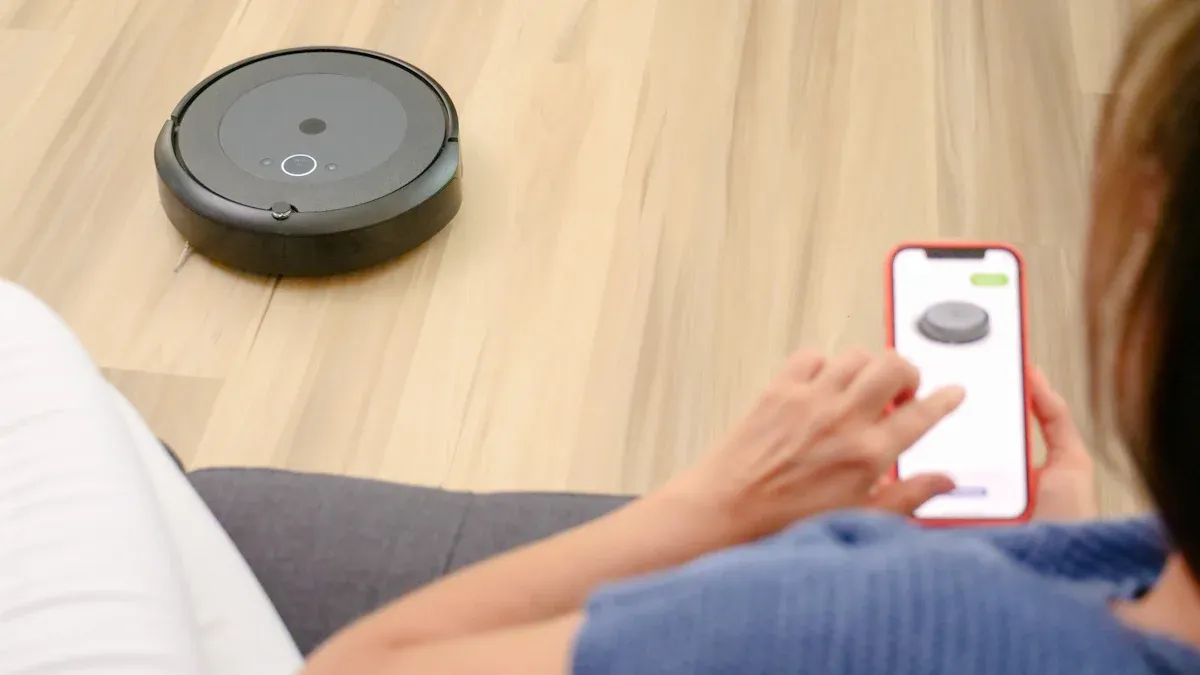
It’s truly frustrating when your Roomba not connecting to WiFi. You are not alone in this experience; 52% of smart home device users report setup or connectivity issues. Your robot vacuums might encounter problems because the router is out of range, you have general WiFi network issues, or your network is simply overcrowded. These are common reasons your Roomba might be not connecting to wifi. This guide provides 11 proven, step-by-step solutions. You can resolve this issue and get your iRobot not connecting to wifi back online quickly.
Perform Essential Reboots
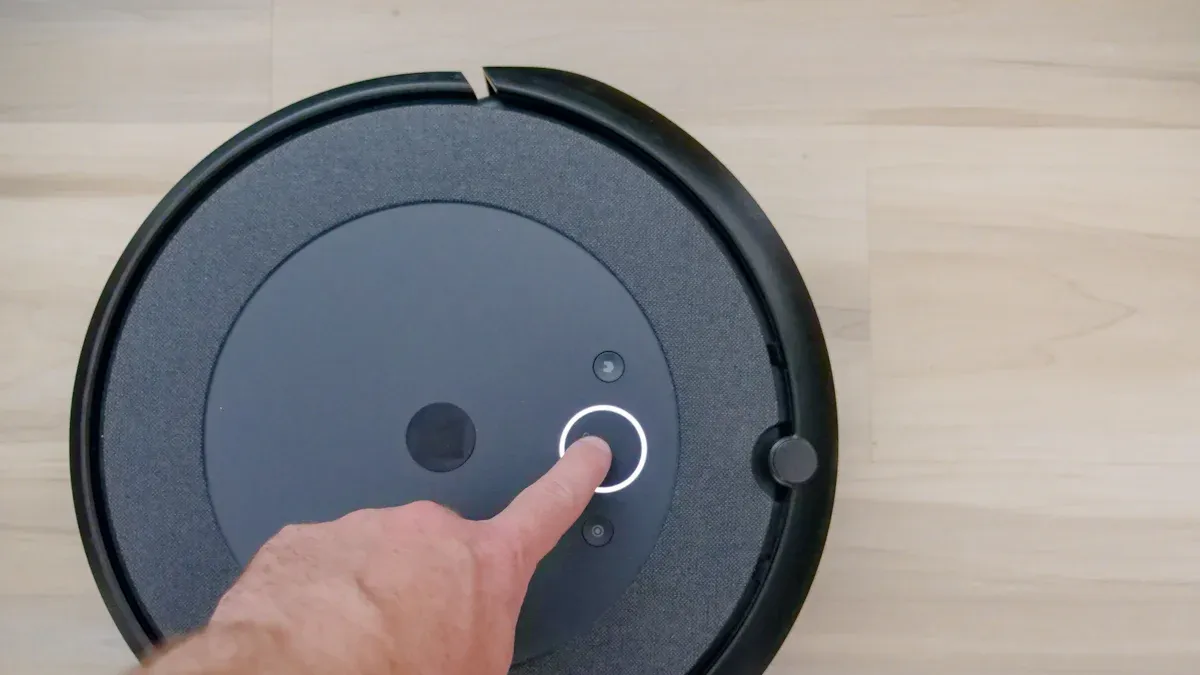
Sometimes, the simplest solutions are the most effective. Many connectivity problems, including your Roomba not connecting, often resolve with a quick reboot. This section guides you through restarting your devices to clear temporary glitches.
Reboot Your Roomba
A simple restart can often fix your Roomba’s connection issues. To reboot your Roomba, press and hold the CLEAN button. For most Roomba 800 and 900 series models, hold it for about 10 seconds. If you have an i, s, or Braava Jet m series, hold the CLEAN button for approximately 20 seconds. For j series models, hold it for nine seconds. Your Roomba will usually play a sound or show a light change to confirm the reboot. This process helps refresh its internal systems and can re-establish a stable connection.
Reboot Your WiFi Router
Your WiFi router is the gateway to the internet for all your devices. If your Roomba is not connecting to wifi, rebooting your router can clear network congestion and refresh its connection. First, unplug your router’s power cable from the wall outlet. Wait at least 30 seconds. This waiting period ensures the router’s power fully resets and drains any residual energy. Then, plug the power cable back in. Allow about two minutes for the router to fully boot up and for all indicator lights, especially for Internet and Wi-Fi, to stabilize. If you use secondary routers or mesh network devices, reboot those as well.
Restart All Smart Devices
Sometimes, the issue extends beyond just your Roomba or router. Restarting all related smart devices can create a fresh network environment. You should unplug your modem, router, and your Roomba. Also, unplug any connected smart home devices, like smart speakers or hubs. Wait for about 30 seconds. Then, plug them all back in, starting with your modem, then your router, and finally your Roomba and other smart devices. This ensures all your robot vacuums and other gadgets reconnect to a clean network. This step helps many users resolve stubborn connectivity problems.
Verify WiFi Network Settings
You might experience wifi network issues if your Roomba is not connecting to wifi. Correct network settings are crucial for your Roomba to connect. This section helps you verify these settings.
Confirm Network Name and Password
First, confirm your WiFi network name (SSID) and password. Even a small typo can prevent your Roomba from connecting. You should check the network name and password carefully. Make sure you use the exact capitalization. Many users make mistakes here. You can find this information on your router or in your internet provider’s documentation.
Ensure 2.4 GHz Network Use
Most Roomba models require a 2.4 GHz WiFi network. They do not support 5 GHz networks. This is a common reason why you cannot connect my roomba to wifi. Some new roombas do support 5 GHz. You need to check your Roomba model’s compatibility. Here is a guide for different Roomba models:
Robot Model | 2.4 GHz Support | 5 GHz Support |
|---|---|---|
Roomba Combo 10 Max | Yes | Yes |
Roomba Essentials | Yes | No |
Roomba® Combo j7+/j9+ | Yes | Yes |
Roomba® Combo j5 | Yes | Yes |
Roomba® j7/j9 | Yes | Yes |
Roomba® i1-i5/Roomba® Combo i5 | Yes | No |
Roomba Combo i8 | Yes | No |
Roomba® s9 | Yes | Yes |
Roomba® i6, i7, i8 | Yes | Yes |
Roomba Combo | Yes | No |
Roomba® 900 | Yes | No |
Wi-Fi Connected Roomba® 800 | Yes | No |
Roomba® 670, 690 | Yes | No |
Models below Roomba® 670 | No | No |
If your router broadcasts both 2.4 GHz and 5 GHz networks, ensure you select the 2.4 GHz option during setup. You might need to temporarily disable the 5 GHz band on your router. This helps your Roomba find the correct network.
Reduce Network Congestion
Too many devices on your WiFi network can cause congestion. This slows down your network. It can prevent your robot vacuums from connecting reliably. You can reduce network congestion with these steps:
Adjust Device Settings: Reduce video resolution during peak times. Limit simultaneous streams. Update firmware for improved efficiency.
Prioritize Devices: Use Quality of Service (QoS) tools on your router. This prioritizes critical devices like your Roomba.
Separate Networks: Consider creating a separate Wi-Fi network for smart home devices. This is often called an IoT network. It isolates them from your main network traffic.
Upgrade Bandwidth: Purchase more internet bandwidth from your provider. This helps if your current capacity is too low.
Optimize Network Design: Adjust access point placement. This minimizes interference. It creates more data channels.
Optimize Roomba Placement
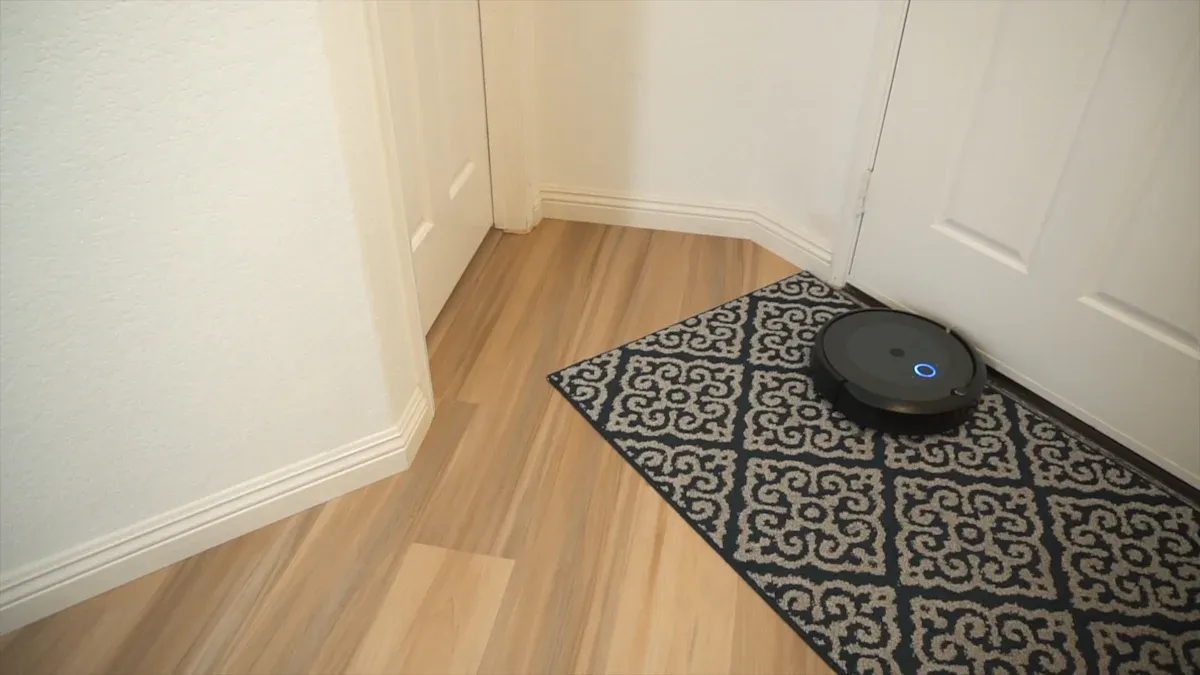
Your Roomba needs a strong Wi-Fi signal to connect reliably. The physical location of your Roomba and your router greatly affects this signal strength. You can improve your Roomba’s connection by optimizing its placement.
Move Roomba Closer to Router
Wi-Fi signals weaken over distance. If your Roomba is far from your router, its connection might be unstable. You should move your Roomba’s home base closer to your Wi-Fi router. This reduces the distance the signal must travel. A closer proximity ensures a stronger and more consistent connection. Try placing your Roomba within the same room as your router if possible. If not, choose a location in an adjacent room. This simple change often resolves many connectivity issues. A strong signal helps your Roomba communicate effectively with your home network.
Clear Physical Obstructions
Physical objects can block or weaken Wi-Fi signals. These obstructions prevent your Roomba from getting a clear signal. You should identify and remove any barriers between your Roomba and your router. Common signal blockers include:
Thick walls
Metal furnishings
Large appliances
Mirrors
Thick walls, especially those made of concrete or brick, significantly degrade Wi-Fi signals. Metal furnishings, like filing cabinets or large metal shelves, can also reflect and absorb signals. You should try to place your Roomba and router in an open area. Avoid placing them behind large pieces of furniture or inside cabinets. Moving these obstructions or relocating your robot vacuums can dramatically improve signal quality. A clear path allows for a much stronger and more stable Wi-Fi connection.
Reset Roomba’s Connection
Sometimes, your Roomba needs a fresh start with its network connection. This is especially true if you changed your router or network settings. Resetting your Roomba’s connection can resolve persistent issues. You can clear old network data and establish a new, stable link. This step is often crucial when your roomba not connecting.
Factory Reset Roomba WiFi
A factory reset of your Roomba’s WiFi settings can fix many connection problems. This action clears all previous network information. Your Roomba will then be ready to connect as a new device. The exact steps vary by model. Most models require you to hold the HOME and SPOT Clean buttons simultaneously until you hear a tone. This indicates the reset is complete. This process effectively wipes its memory of old networks. Check your iRobot manual for precise instructions for your specific model. This reset gives your robot a clean slate for network discovery and connection.
Re-Pair Roomba with iRobot App
After resetting your Roomba’s WiFi, you need to re-pair it with the iRobot Home app. Open the app on your mobile device. Select the option to add a new robot. The app will guide you through connecting your Roomba to your home network. You will enter your WiFi password during this process. Ensure your phone is connected to the 2.4 GHz network if your Roomba requires it. If your Roomba is not connecting to wifi after a router change, unplug your Roomba from its base. Leave it off for half an hour. This allows its internal network components to fully discharge. Then, plug it back in and try re-pairing. This extended power cycle helps clear any lingering network conflicts. Many users find this step crucial for successful reconnection. It ensures your robot vacuums can successfully connect to your updated network. This process helps you connect my roomba to wifi again, restoring full functionality.
Check Device Power and Updates
Your Roomba needs proper power and up-to-date software to connect reliably. This section helps you check these vital components. You can ensure your device is ready for a stable Wi-Fi connection.
Confirm Charging Dock Power
A Roomba that does not charge correctly cannot function or connect. You must verify its charging dock receives power. Follow these steps to check:
Unplug your Roomba’s charging station or dock. Then, plug it back in.
Look for a power light on the charging station. If it lights up, the dock has power.
If no power light appears, try plugging the charging station into a different electrical outlet. This helps you confirm if the problem is with the outlet or the charger. The power light will show you when you find a working outlet. Ensuring power to your robot vacuums is a basic but crucial step.
Update Roomba Firmware
Outdated firmware can cause connection problems. Updating your Roomba’s firmware often fixes these issues. You can access the Create® 3 webserver’s update page.
You will see the robot’s current firmware version at the top of the connect page. This includes its ROS 2 version.
If your robot connects to the Internet, a button will appear. You can download and flash the most recent update from the irobot website.
You can also use the drop-down box. Select a specific firmware release for available ROS 2 versions. The latest release for the current ROS 2 version is the default.
For a specific firmware version not listed, click the hyperlink. This expands the menu. You can then upload a local firmware file.
Click “choose file” to select the local firmware. Then, click “upload file and update” to start the process.
Update iRobot Home App
Your iRobot Home app also needs to be current. An outdated app might have bugs. These bugs can prevent proper communication with your Roomba. Go to your phone’s app store (Google Play Store or Apple App Store). Search for the iRobot Home app. If an update is available, download and install it. Keeping the app updated ensures compatibility. It also provides the latest features, especially for new roombas.
Troubleshoot Network Interference
Wireless signals can face many challenges. Other devices or security settings can block your Roomba’s connection. This section helps you identify and fix common interference issues. You can ensure a clear path for your Roomba to connect.
Disable VPN or Firewall Temporarily
Your Roomba might struggle to connect if you use a Virtual Private Network (VPN) or a strict firewall. VPNs can cause pairing issues. They reroute your internet traffic. They also hide your Wi-Fi location data. Router configurations, including firewalls and VPNs, often prevent a Roomba from connecting to your network. Security settings on your router, such as firewall limits and VPN operation, can block device access for your Roomba.
You should temporarily disable your VPN on your phone or router. Also, turn off your router’s firewall. Try connecting your Roomba again. If it connects, you know the VPN or firewall caused the problem. You can then adjust your settings to allow your Roomba access. Remember to re-enable your security features after troubleshooting.
Other household devices can also cause interference. Microwaves, baby monitors, and cordless phones all use similar frequencies. Even your neighbor’s Wi-Fi can act as a competing signal. Try moving your Roomba away from these devices. This can improve its connection.
Adjust Router Firewall Settings
Your router’s firewall protects your network. However, it can sometimes be too strict for your Roomba. You might need to adjust its settings. This allows your robot vacuums to communicate properly.
Here are the recommended firewall settings for Roomba compatibility:
Internal Network Traffic:
UDP port 5353/5678 for discovery.
TCP/HTTPS 443 for data traffic.
TCP/MQTT 8883 for data traffic.
Outbound Traffic to the Internet:
UDP/SNTP port 123 for time.
TCP/HTTPS 443 (/80) for data traffic.
TCP/MQTT 8883 for data traffic.
You can access your router’s settings through a web browser. Type your router’s IP address into the address bar. You will find this address in your router’s manual. You might need to log in with an administrator username and password. Look for sections like “Firewall,” “Security,” or “Port Forwarding.” Adjust these settings carefully. If you are unsure, consult your router’s manual or your internet service provider.
Review Advanced Router Settings
Your router has advanced settings. These settings can sometimes block your Roomba’s connection. You should check these configurations. You can ensure your Roomba connects without issues.
Disable AP Isolation Mode
Your router might have a setting called AP Isolation Mode. This feature prevents devices on your network from communicating with each other. Your Roomba needs to communicate with your phone and the iRobot app. If AP Isolation is active, your Roomba cannot connect. You should log into your router’s settings. Look for options like “AP Isolation,” “Client Isolation,” or “Guest Mode.” These settings are often found under “Wireless” or “Security.” Disable this feature. Save your changes. Then, try connecting your Roomba again. This step allows your Roomba to communicate freely within your home network.
Check MAC Address Filtering
Your router can also filter devices by their MAC address. A MAC address is a unique identifier for each device. If your Roomba’s MAC address is not on the allowed list, it cannot connect. You need to find your Roomba’s MAC address. It is usually on a sticker under the robot or in the iRobot app’s settings.
Then, you will log into your router’s web interface.
Locate the ‘MAC Filtering’ option within the router’s settings. This is often found under ‘Wireless’ or ‘Wireless Security’. It might also be labeled as ‘MAC Address Control’, ‘Address Reservation’, or ‘Wireless MAC Authentication’.
If MAC Filtering is active, add your device’s MAC Address to the allowed list. Save the changes.
Alternatively, you can disable the feature if you do not wish to use it.
For example, on a Linksys Dual-Band WiFi Router:
Log into the router’s web interface.
Navigate to the ‘Configuration’ tab, then ‘Wi-Fi’, and finally ‘Wireless MAC Filter’.
Enable the ‘Wireless MAC Filter’ by checking the box. Choose your desired filtering option: either prevent listed devices from accessing the network or permit only listed devices.
Use the ‘Wireless Client List’ to select devices or manually input up to 32 MAC addresses into the ‘MAC Address Filter List’.
Add the chosen devices to the list.
Save the settings to apply the changes.
This ensures your robot vacuums can access the network.
Try Alternate Setup Methods
Sometimes, the problem does not lie with your Roomba or your home network. Your mobile device itself might cause connection issues. You can try different setup methods to bypass these potential roadblocks.
Use a Different Mobile Device
Your current phone or tablet might have a temporary glitch. This glitch could prevent it from properly communicating with your Roomba during setup. Try using a different mobile device. Use a friend’s phone or another tablet you own. Install the iRobot Home app on this new device. Then, attempt the Roomba setup process again. This helps you determine if your original device was the source of the problem. Many users find this simple switch resolves their connection woes.
Reset Phone Network Settings
Your phone’s network settings can sometimes interfere with new device connections. Resetting these settings can clear any old configurations that might cause issues. This action will delete saved Wi-Fi networks and passwords. It also removes saved Bluetooth devices and VPN configurations. However, it does not affect your apps, photos, videos, or other personal data. You do not need to back up these items before performing the reset.
Here is how to reset network settings on different mobile devices:
For most Android phones or tablets:
Swipe up from the home screen to open the app drawer.
Launch the Settings app (the one with a gear icon).
Scroll down and tap System.
Select Reset options.
Select the function you wish to reset.
Tap Reset settings and follow the prompt.
For Samsung Galaxy phones or tablets:
Swipe up from the One UI home screen to open the app drawer.
Launch the Settings app.
Scroll down to General management.
Tap Reset.
Tap Reset network settings.
Choose a SIM card if you have more than one.
Tap the Reset settings button from the following screen.
For iPhone or iPad (iOS and iPadOS 11 and later):
Open the Settings app on your device.
Scroll to General.
Select Transfer or Reset iPhone.
Tap Reset at the bottom of the screen.
Select Reset Network Settings and enter your device password to confirm.
After resetting, reconnect your phone to your home Wi-Fi network. Then, try pairing your Roomba again.
Address iRobot Cloud Issues
Troubleshoot iRobot Cloud Connection
Sometimes, your Roomba connects to your home Wi-Fi, but it still cannot communicate with the iRobot cloud. This cloud connection is vital for remote control and smart features. If your robot is not connecting, the problem might be with the cloud service itself or how your phone accesses it. You can try a simple trick to force a new connection.
First, turn off your phone’s Wi-Fi. Go to your phone’s settings or quick access menu. Toggle the Wi-Fi switch to the “off” position. This ensures your phone uses cellular data.
Next, confirm cellular data is active for the iRobot HOME app. Check your phone’s app settings. Make sure the app has permission to use cellular data. This step is important. It allows the app to bypass your home Wi-Fi network. It connects directly to the iRobot cloud servers.
Then, completely quit the iRobot HOME app. Do not just minimize it. Close it from your phone’s recent apps list. This clears any temporary data or glitches.
Finally, relaunch the iRobot HOME app. With your phone on cellular data, the app will attempt to establish a fresh connection to the iRobot cloud. This often resolves issues where your Roomba appears online but does not respond to commands. Many users find this method effective. It helps confirm if the problem lies with your local Wi-Fi or the cloud service. If your Roomba connects and responds now, your home Wi-Fi might have a specific block for the iRobot cloud. You can then investigate your router settings further. This test helps you isolate the issue. It tells you if your Roomba’s connection problem is local or related to the cloud. If it works on cellular, you know your Roomba can reach the cloud. The issue then points back to your home network’s interaction with the service. This method helps you determine if your home network is blocking communication with the iRobot servers. If the app works on cellular, your home network might have firewall rules or other settings preventing the Roomba from fully connecting to the cloud. You can then focus your troubleshooting on those specific router configurations.
When Roomba Not Connecting Persists
You have tried every troubleshooting step. Your Roomba still shows it is not connecting to wifi. This can feel frustrating. Sometimes, the problem requires expert help. You should contact iRobot customer support. They can offer more specialized assistance.
Contact iRobot Support
When your irobot not connecting to wifi, reaching out to the manufacturer is the next logical step. iRobot provides several ways to get help. You can visit the iRobot official website. Look for the “Support” section. Then, click on “Contact Us.” You will find various contact methods there.
You can call their customer team directly. Many consumers use the toll-free number: (877) 855-8593. About 71% of callers reached a real person using this number. You can also message them via the “Send Us a Message” button. Logging into your iRobot account is necessary to upload files to your support message.
Here are some ways to contact iRobot:
Contact Type | Details |
|---|---|
Toll-Free Number | (877) 855-8593 |
Headquarters Phone | (781) 430-3000 |
Sales/Reservations | (800) 727-9077 |
Best Email | |
Fax | +1 (781) 430-3001 |
Website | www.irobot.com |
Help Center | Visit contact page on irobot.com |
Operating Hours | Mon-Fri: 9:00 AM – 9:00 PM EST; Sat-Sun: 9:00 AM – 6:00 PM EST |
Corporate Address | iRobot Corp., 8 Crosby Drive, Bedford, Massachusetts 01730, USA |
You can also find iRobot on social media platforms:
Facebook
Pinterest
Instagram
Twitter
LinkedIn
YouTube
Be aware that response times can vary. Some customers experienced delays. They were promised follow-up emails within 48 hours. These promises were not always met. One customer waited a week for a safety team response. iRobot has acknowledged and apologized for not meeting expected response times in some cases. Keep this in mind as you wait for assistance.
You have explored 11 proven fixes for your irobot not connecting to wifi. These steps effectively resolve common issues when your roomba not connecting. A stable WiFi connection is crucial for optimal irobot performance and efficient cleaning. If your irobot is still not connecting to wifi, revisit this guide. You can also contact irobot support for further assistance. Your irobot will soon be back to cleaning efficiently.
✅ Tip: Always ensure your irobot has a strong, stable WiFi signal for the best experience.
FAQ
Why does my Roomba keep disconnecting?
Your Roomba might disconnect due to weak WiFi signals. Move it closer to your router. Interference from other devices can also cause this. Check for physical obstructions. These can block the signal.
Can I connect my Roomba to a public WiFi network?
No, you cannot connect your Roomba to public WiFi. These networks often require web page logins. Your Roomba cannot access these pages. Always use a secure home network for your Roomba.
What if my Roomba’s lights are off?
If your Roomba’s lights are off, it might not have power. Ensure its charging dock is plugged in. Check the power outlet. Make sure your Roomba sits correctly on the dock.
Does my Roomba need constant WiFi?
Your Roomba needs WiFi for smart features. This includes scheduling and remote control. It can clean without WiFi. But you must start it manually. WiFi allows full app control.
